Folders and workflows, created on install.
The moment installation completes, five CRM modules each have a WorkDrive folder and an auto-creation workflow — no manual configuration needed.
Once the WorkDrive for Zoho CRM extension is installed, it automatically creates a folder structure in WorkDrive and five workflows in Zoho CRM — one per default module. From that point forward, every new Lead, Account, Contact, Deal, and Campaign record gets its own subfolder without any manual steps.
Each of the five default modules receives a dedicated folder in WorkDrive and a matching workflow in Zoho CRM.
| CRM module | WorkDrive folder | Auto-creation workflow |
|---|---|---|
| Leads | Leads |
Creates a subfolder when a new Lead is added |
| Accounts | Accounts |
Creates a subfolder when a new Account is added |
| Contacts | Contacts |
Creates a subfolder when a new Contact is added |
| Deals | Deals |
Creates a subfolder when a new Deal is added |
| Campaigns | Campaigns |
Creates a subfolder when a new Campaign is added |
In WorkDrive, a Team Folder named Easy WorkDrive is created as the central hub. Each of the five module folders sits inside it:
Easy WorkDrive (Team Folder)
|- Leads
|- Accounts
|- Contacts
|- Deals
|- Campaigns
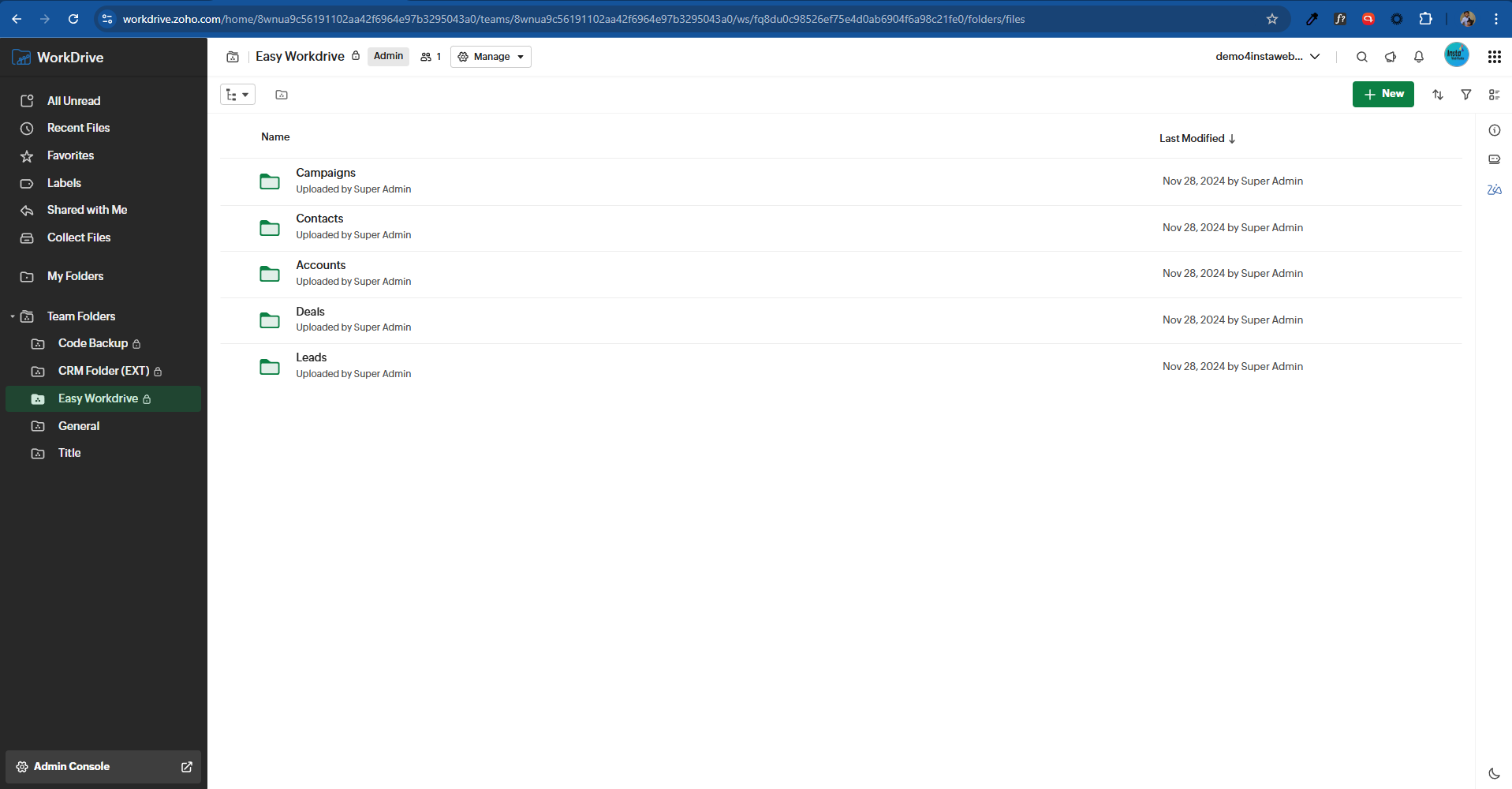
Five workflows appear automatically in Zoho CRM — one for each default module. Each workflow triggers on record creation and calls the extension to create the matching subfolder in WorkDrive.
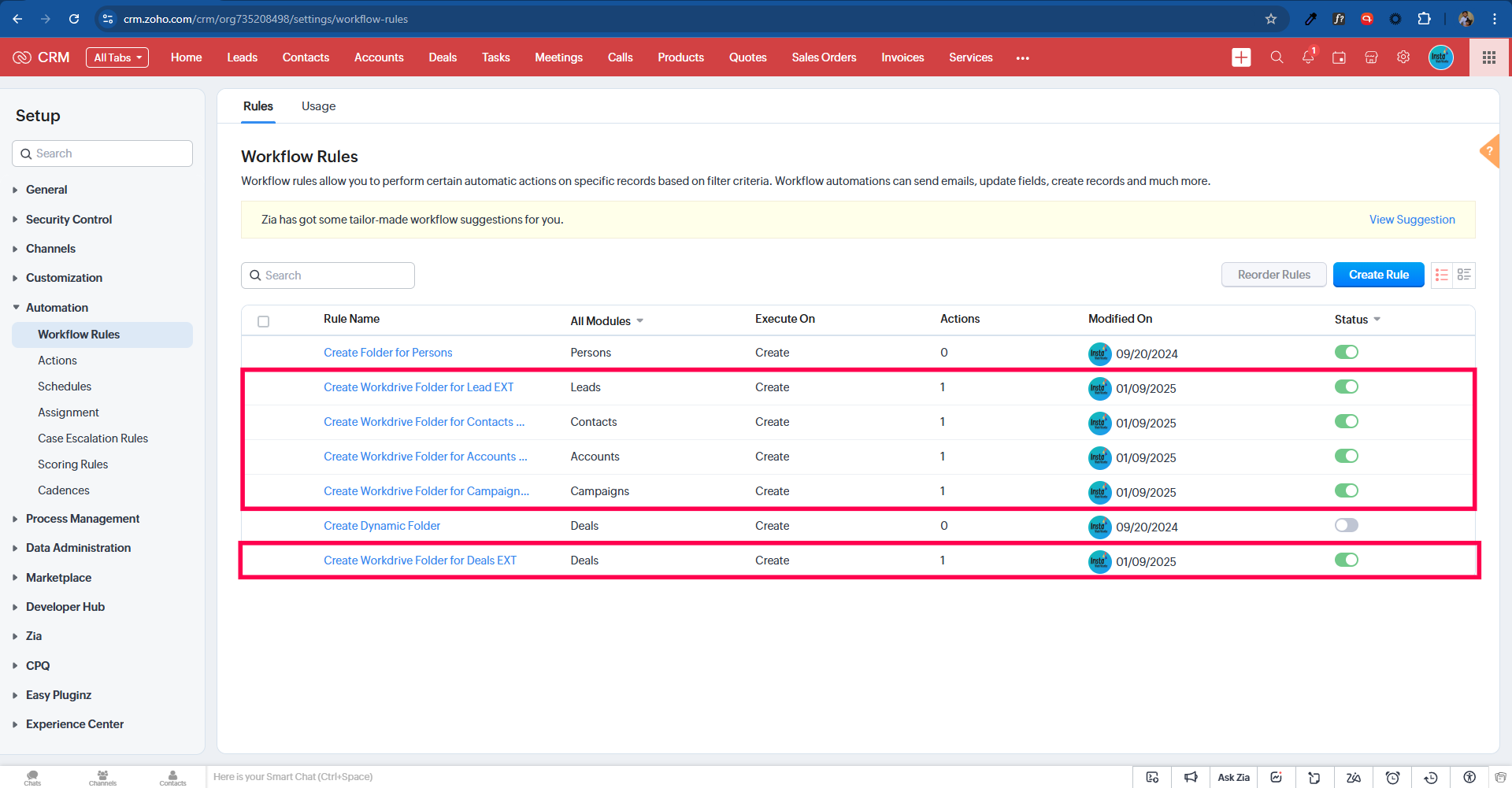
Disable a workflow in Zoho CRM to stop creating new subfolders for that module. Re-enable it to resume. Existing folders are not affected.
Continue to Default Folder Structure to see how the full hierarchy is organised, or jump to Related List Settings to customise the widget appearance.