What's new in v6.
Dynamic authorization, external file collection, password-protected share links, and workflow triggers - everything that's new in this release.
Admins can now select which users in the organisation are allowed to use the extension. This gives better control over data access and extension usage.
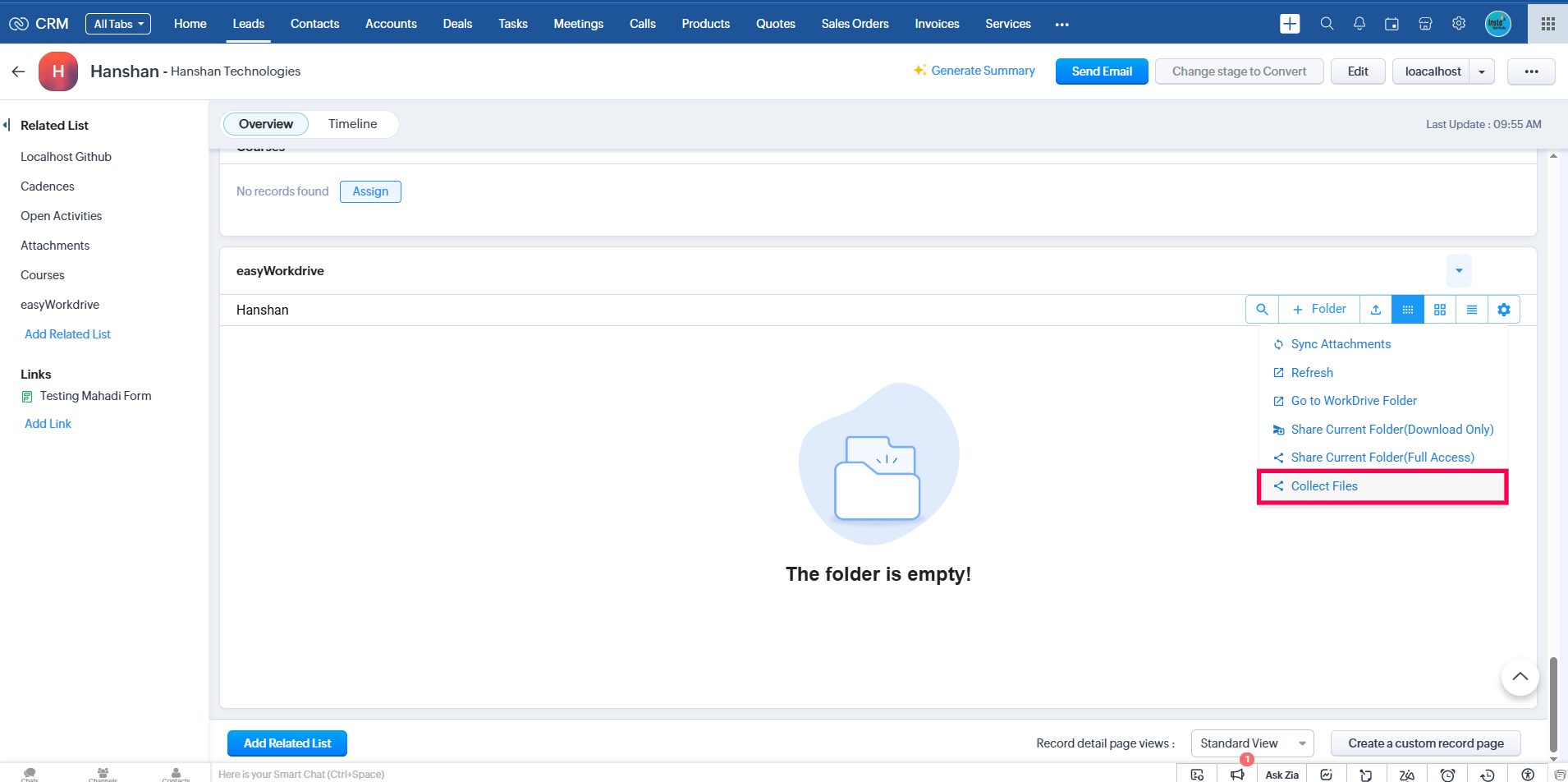
Generate upload links directly from Zoho CRM that allow clients, partners, or external users to upload files into your WorkDrive.
Add an optional expiration date to these upload links.
Uploaded files can be grouped by name or email.
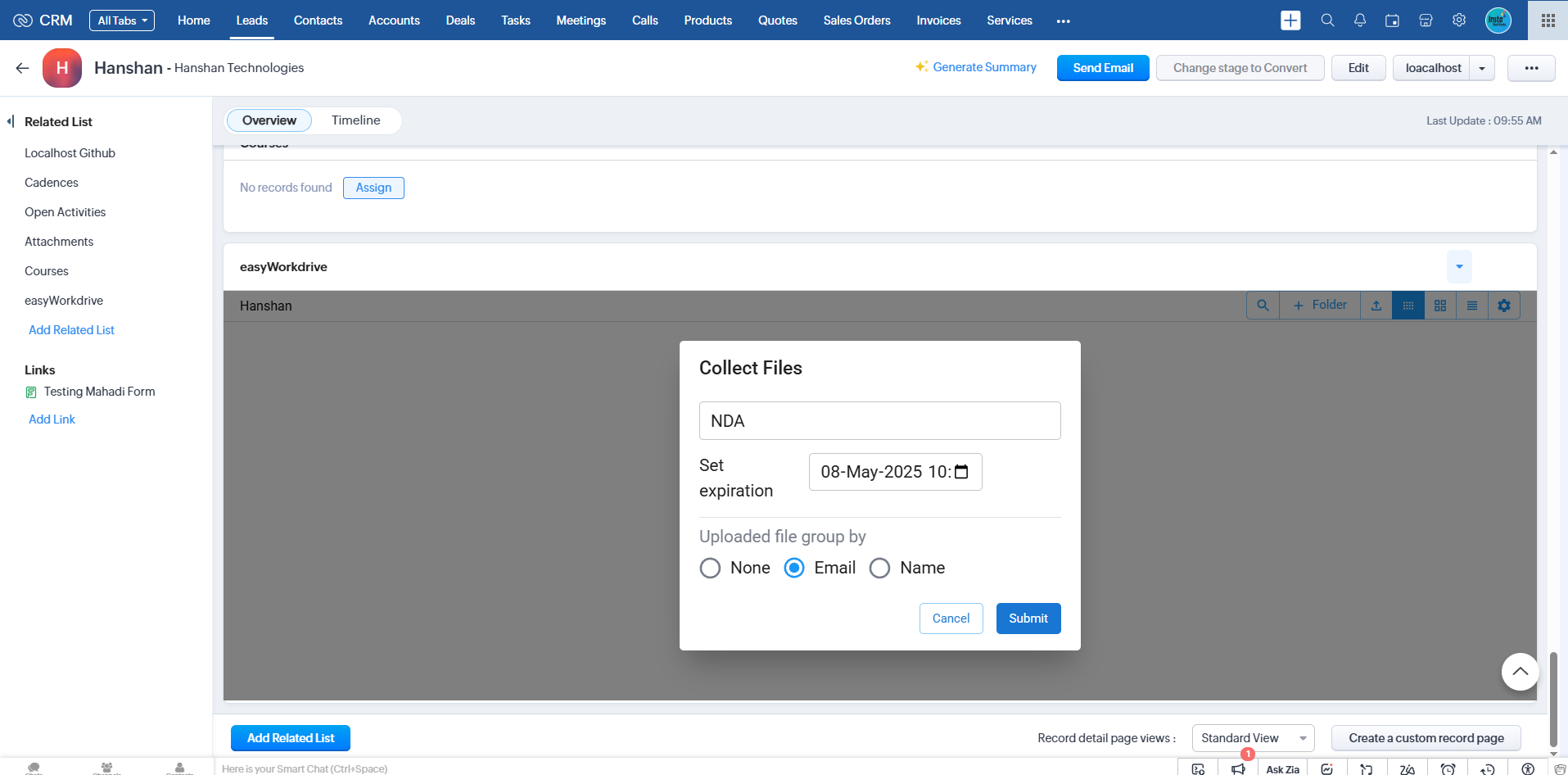
You can now set passwords for share links generated from Zoho CRM, along with an expiration date, to add an extra layer of security when sharing files externally.
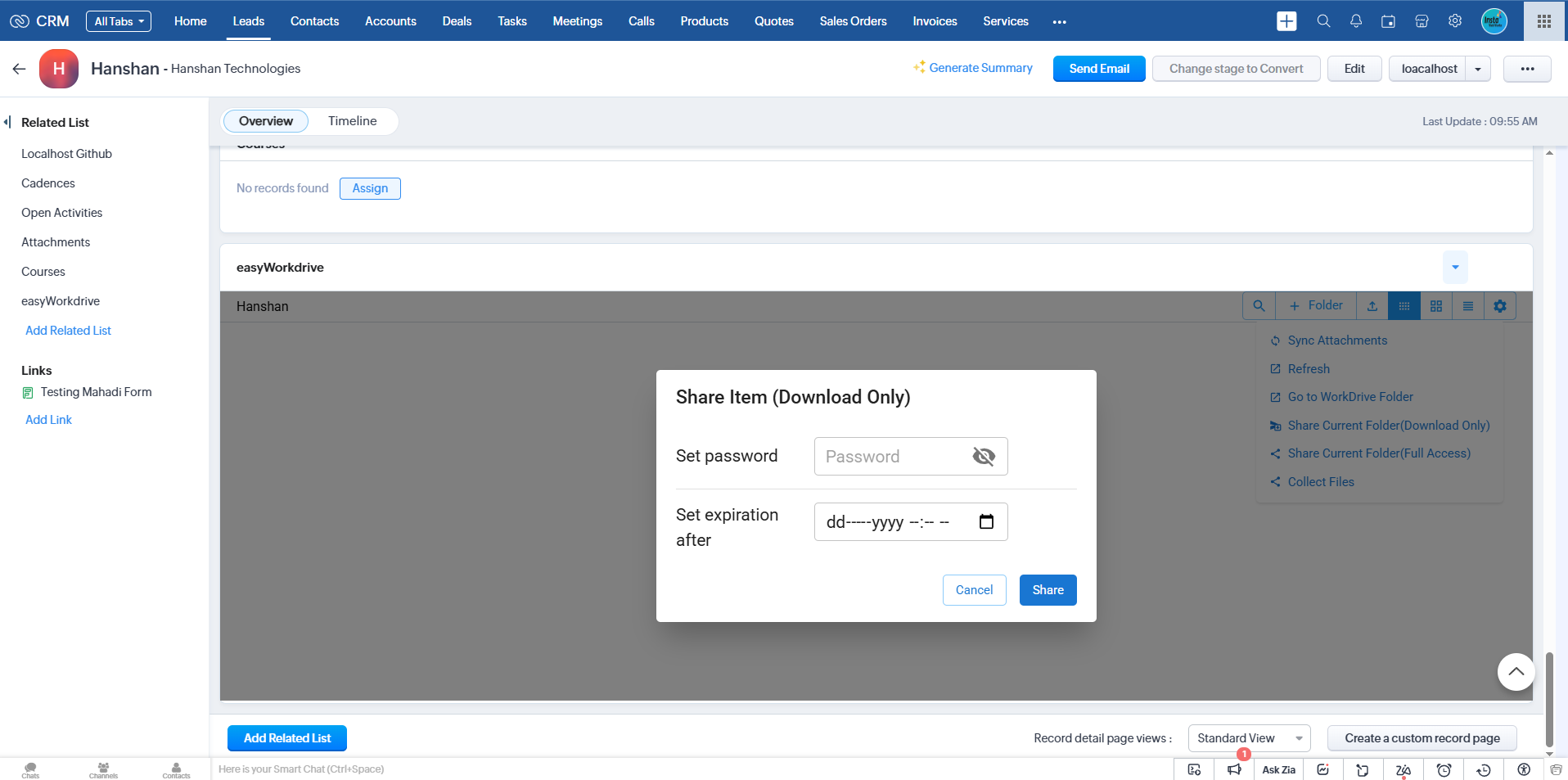
Within the module settings, you can now enable the option to trigger workflows, blueprints, or approvals.
When this option is selected, any update to the fields configured in the folder structure automatically triggers all associated workflows related to those fields after the record is created.
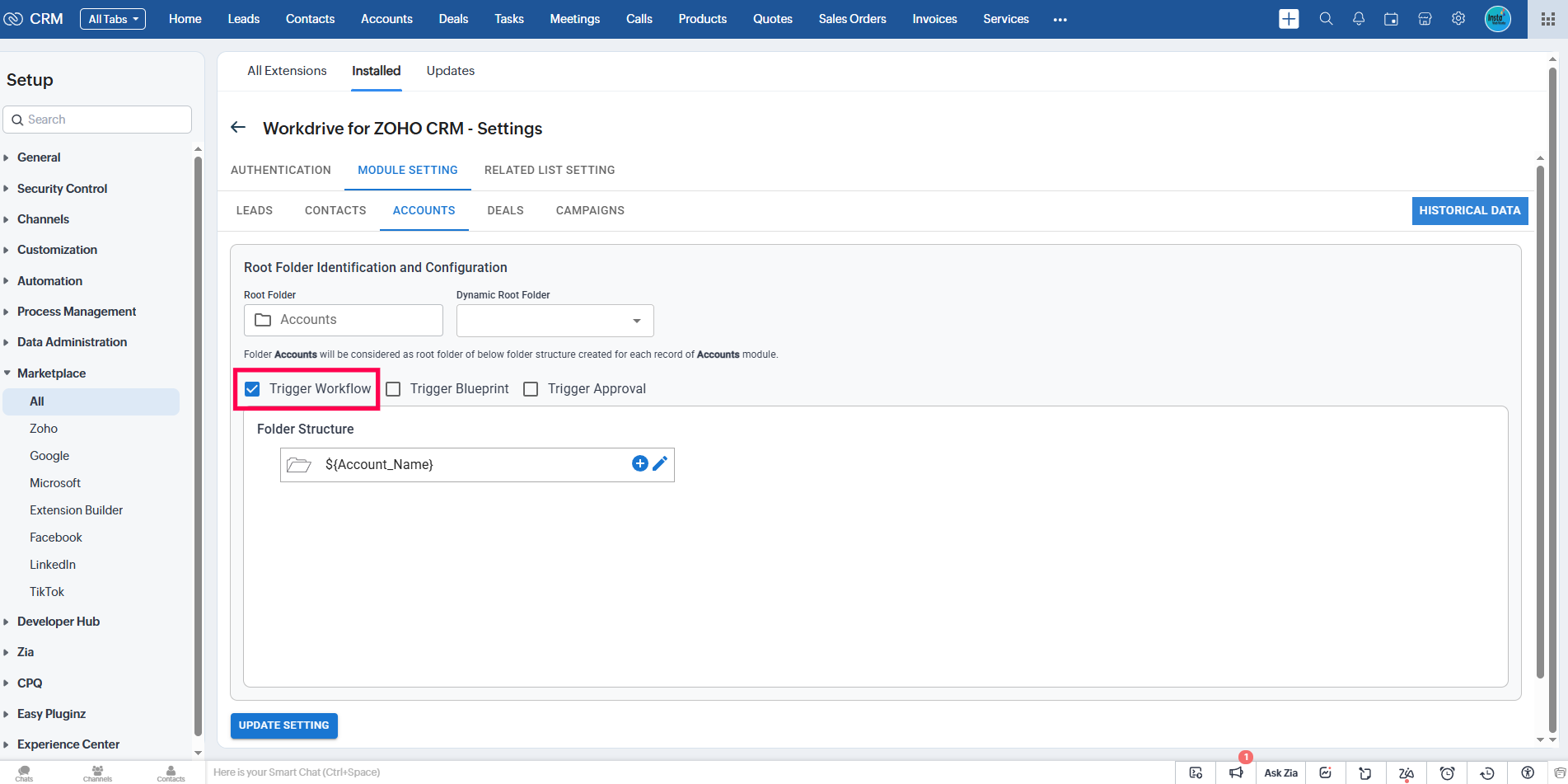
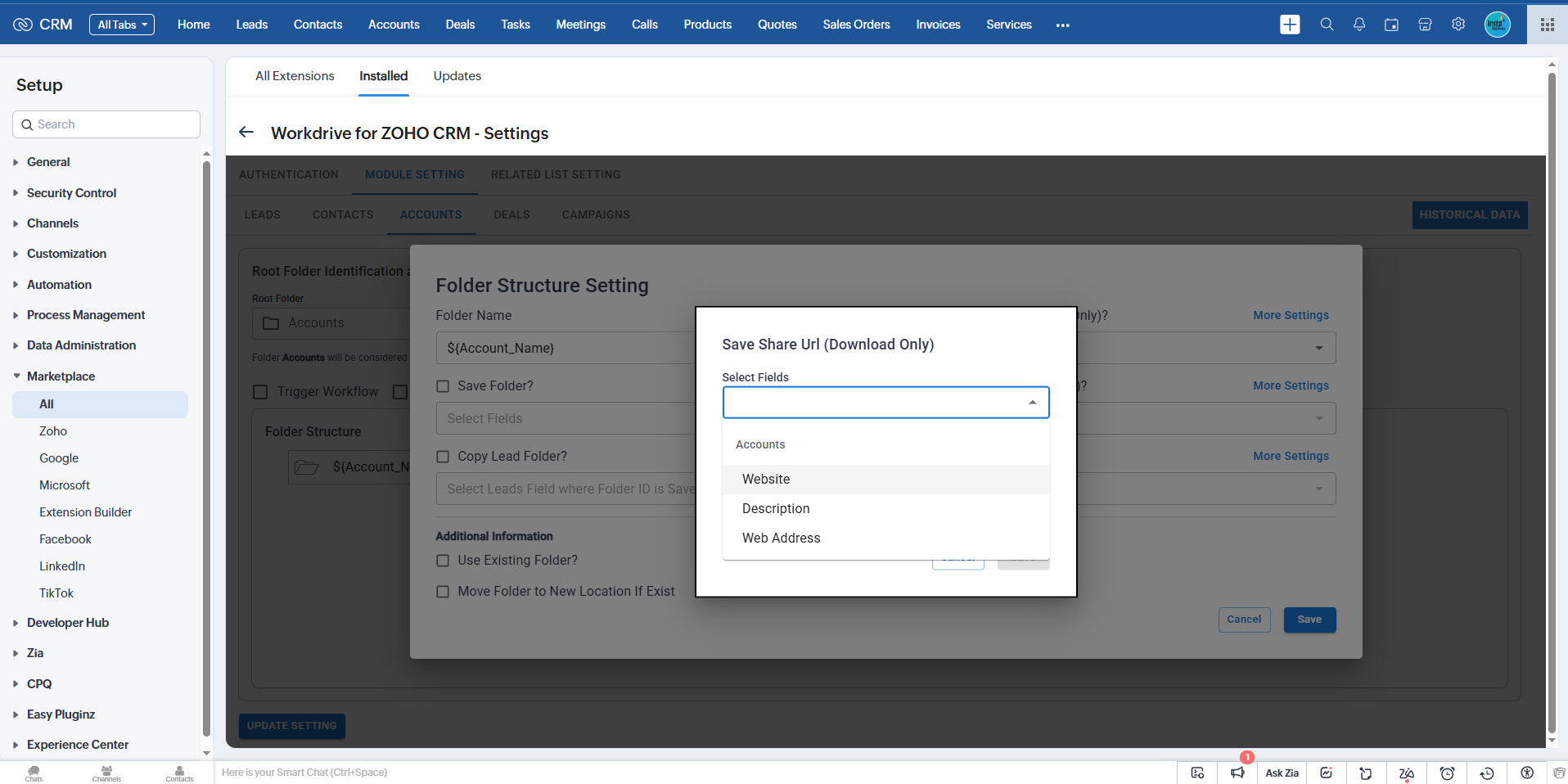
From the settings page, you can now configure and save a password for the share URL once a record is created. This allows secure link generation as part of your record creation process, and you can bind it to a module field.
You can now remove the logo from the related list view directly through the settings.
Choose the default view, list or grid, for how folders and files are displayed in the related list.
When the Collect File feature is configured from the settings page, uploaded files are not grouped by name or email. Instead, all files are uploaded directly into the specified root folder.