Chapter Two · Advanced Features
Backfill folders for every record, at once.
Use the bulk process tool to retroactively create WorkDrive folders for existing CRM records - process thousands of records without manual effort.
Note
Each record processing may require 10 to 12 API calls, depending on the specific criteria. Please ensure that your API usage remains within your allocated limits. If your processing needs exceed the available API quota, you will need to purchase additional API capacity.
Open Settings
01
Accessing the Extension Settings
Navigate
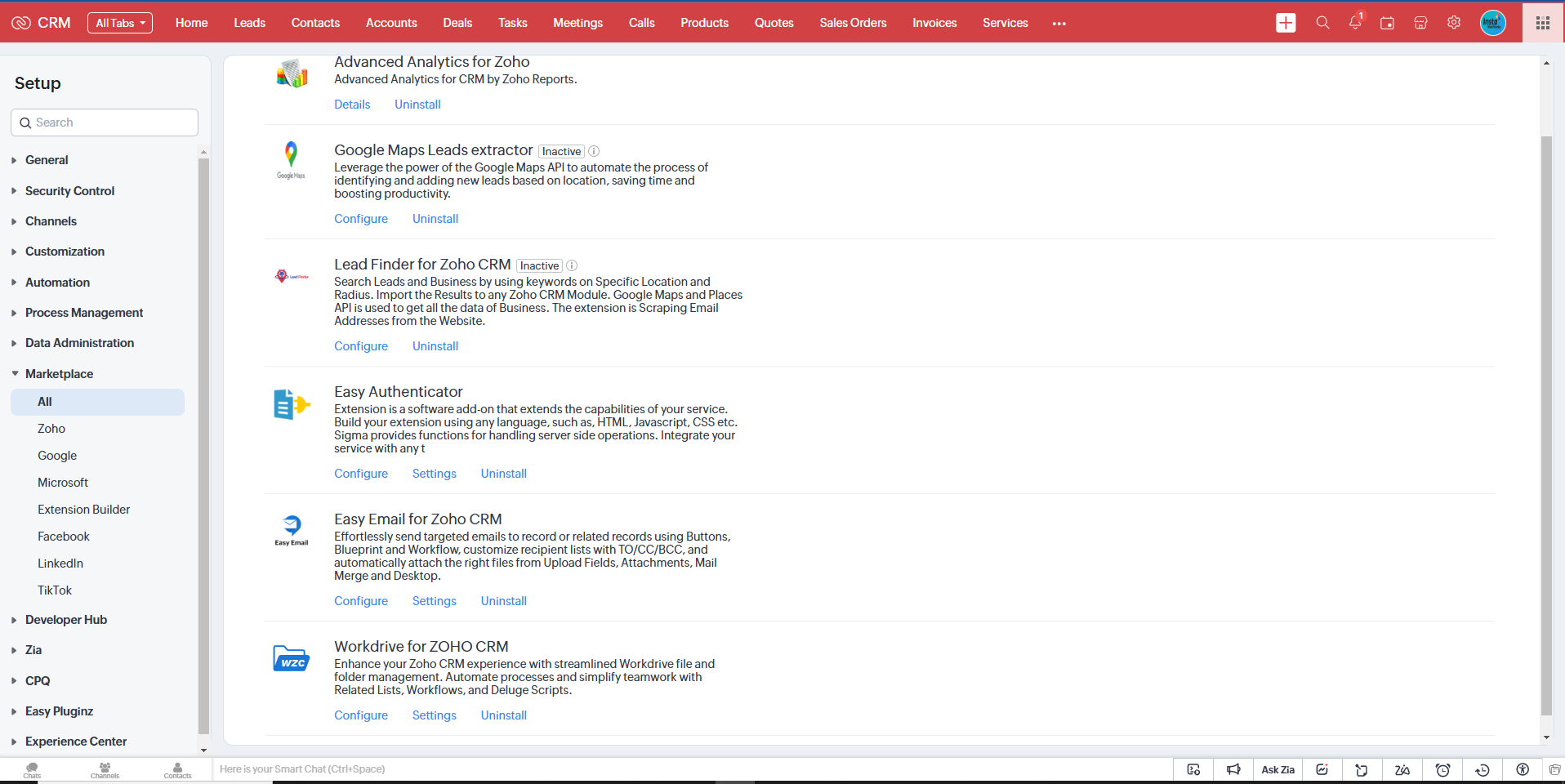
Go to Marketplace > Installed > find WorkDrive for Zoho CRM > click Settings.
02
Configuring Module Settings
Historical Data
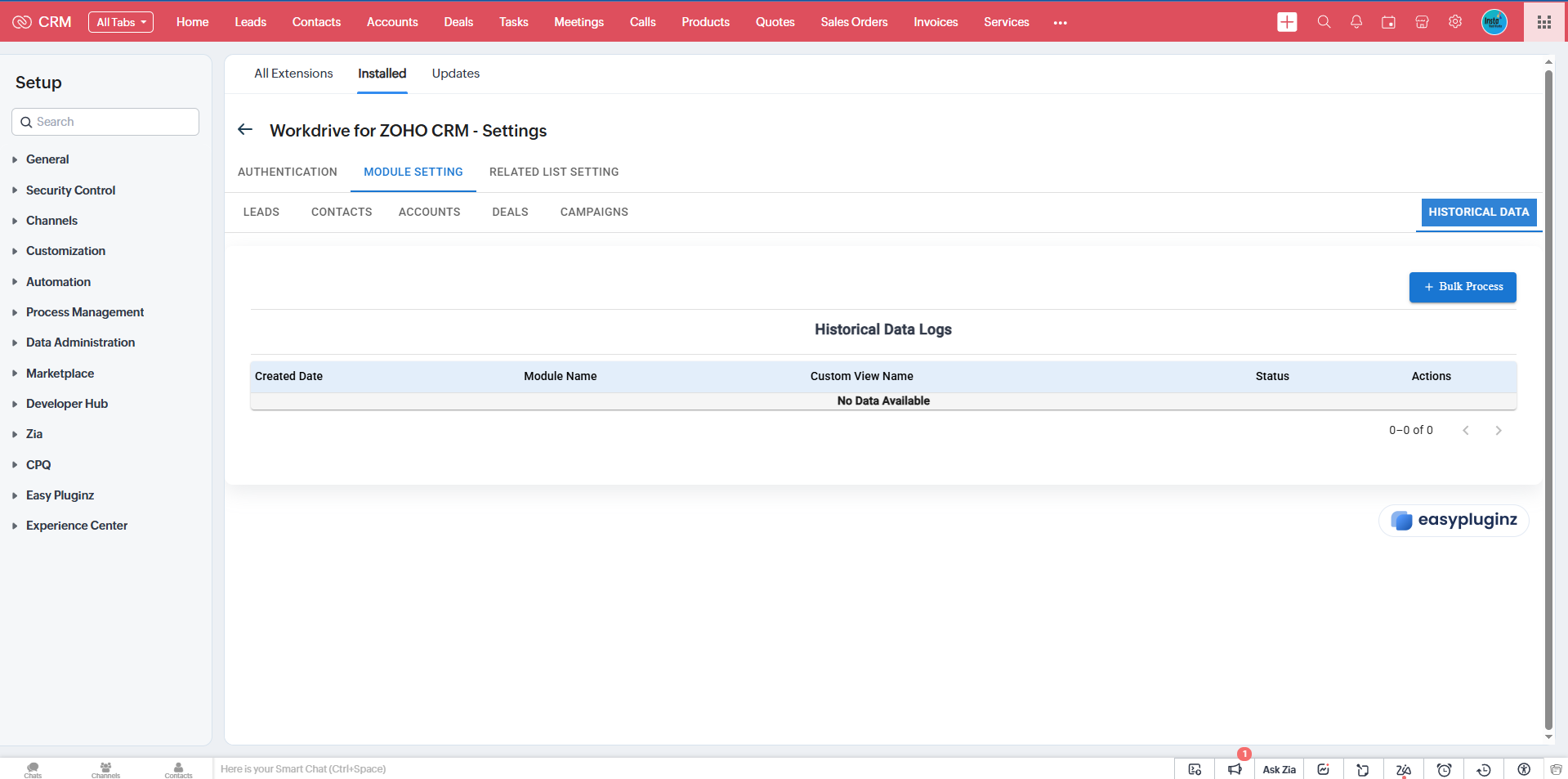
In Module Settings, locate the Historical Data button and click it.
Bulk Process
Click Bulk Process to add a new process.
Configure Folders
03
Selecting the Module and Custom View
Select
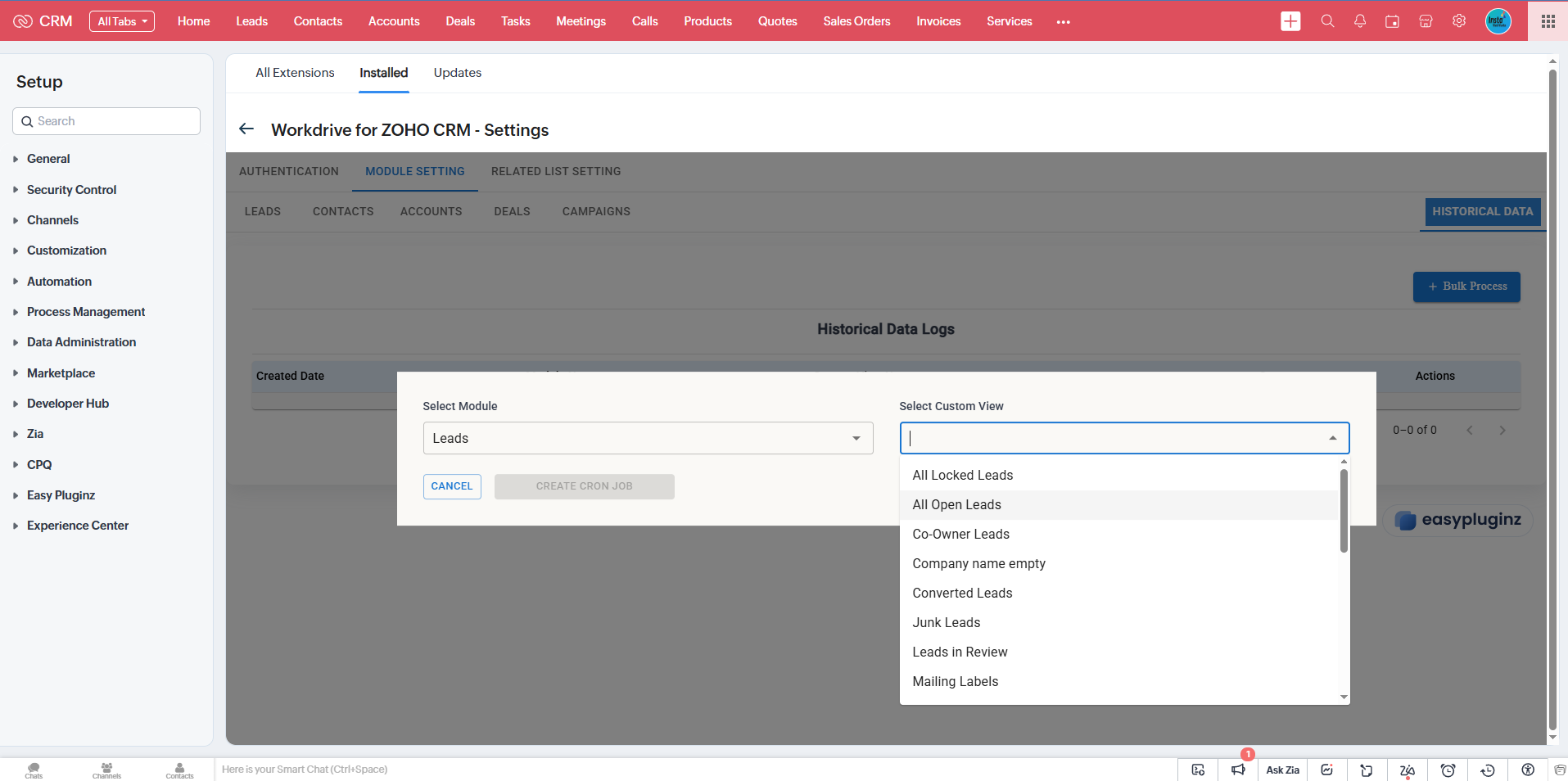
Select the relevant Module and the Custom View.
Custom View
If you have specific conditions for the records, create a custom view beforehand and select it during this stage.
04
Name the Folder Structure
Folder Name
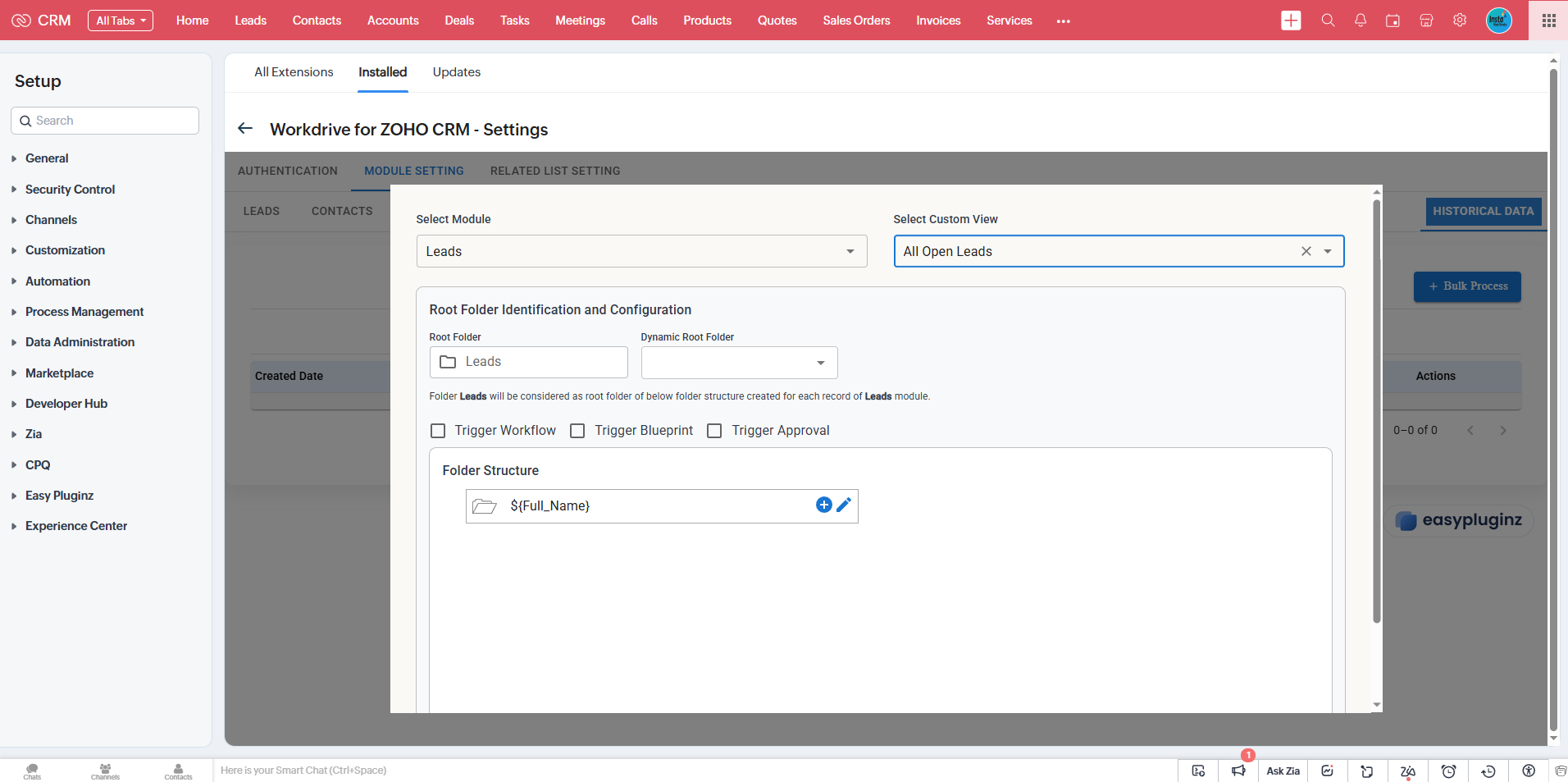
Provide a name for the record's folder. Use + to add subfolders if required.
Dynamic Fields
Press Shift + 3 (#) on your keyboard to insert module fields into the folder name.
Folder Options
05
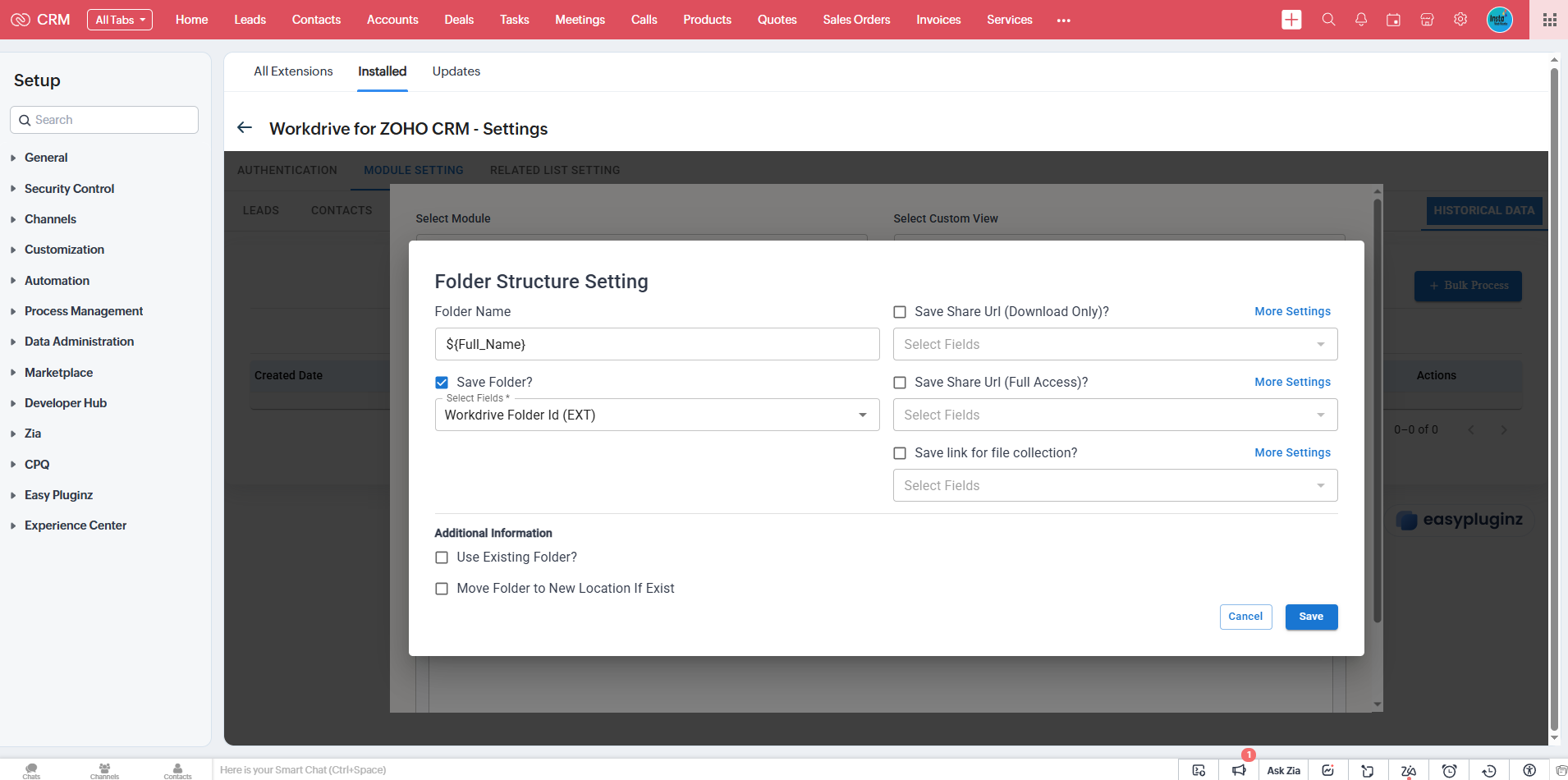
Configuring Folder ID Settings
Open
Click the Pencil Icon to open the popup.
Save Folder ID
Select the field name in the Save Folder? dropdown to store the Folder ID in the record for use with the Related List Widget.
Recommended
Use the WorkDrive Folder ID (EXT) field - created by default for the 5 default modules. For custom modules, create the field manually beforehand.
06
Using Existing Folders
Option
Check Use Existing Folder? to prevent duplicate folder creation, then save your changes.
Caution
Avoid selecting this checkbox unless necessary - it triggers an API call and results in unnecessary usage.
07
Create Share URL
Optional
To generate a Share URL and save it to the record, select the checkbox and choose the field name to save it to.
Run Process
08
Creating a Cron Job
Start
Click CREATE CRON JOB to start the bulk process.
Important
Do not create more than one cron job at a time. Wait until the current process is finished before starting another.